There’s nothing quite as frustrating as settling into your studio, ready to create, only to be met with an unwelcome series of pops or crackles from your studio monitors. These jarring noises can shatter your concentration and even lead you to question the health of your valuable audio equipment. In the critical world of music production, clear and unadulterated sound is paramount, and any unwanted noise can compromise your mixing and mastering decisions. Fortunately, many common causes of studio monitor popping can be diagnosed and resolved with simple, do-it-yourself troubleshooting steps. This guide will walk you through understanding why these pops occur and provide five effective fixes to help you restore pristine audio to your creative space.
Understanding Studio Monitor Popping
Studio monitor popping, crackling, or buzzing sounds are often indicators of an underlying issue within your audio setup. These noises can range from subtle, infrequent clicks to persistent, loud bursts that make your monitors unusable. Understanding the root causes is the first step towards a lasting solution. The pop you hear, especially during power cycles, can sometimes be a normal, albeit minor, consequence of capacitors discharging within the monitor’s circuitry. However, persistent or loud pops are usually signs of electrical interference, grounding problems, faulty cables, or even software conflicts that disrupt the audio signal chain. Ignoring these symptoms can lead to distraction, inaccurate sound reproduction, and in rare cases, potential damage to your speakers.
Diagnosing the Source of the Pop
Before diving into solutions, it’s crucial to identify when and where the popping occurs. This diagnostic step helps narrow down the potential culprits significantly. First, determine if the popping is affecting one speaker or both. If only one monitor is popping, the issue is likely localized to that specific monitor, its power cable, or its signal cable. If both monitors are affected, the problem points towards a shared component, such as your audio interface, power supply, or the computer itself.
Next, observe when the popping happens. Does it occur only when you power your system on or off? Is it random and intermittent during operation? Does it happen when you switch on another electrical appliance in your room, like a light, refrigerator, or air conditioner? Or perhaps when you connect a USB device? Pinpointing these moments can provide vital clues to the nature of the interference or fault. For instance, a pop when another device turns on often suggests an electrical interference issue, while constant crackling might point to a faulty cable or driver problem.
5 Quick Fixes for Popping Studio Monitors
Once you have a clearer idea of the symptoms, you can begin applying these DIY fixes to eliminate the unwanted popping from your studio monitors.
1. Inspect and Upgrade Your Cables
|
Our Picks for the Best Studio Monitor in 2026
As an Amazon Associate I earn from qualifying purchases.
|
||
| Num | Product | Action |
|---|---|---|
| 1 | PreSonus Eris 3.5 Studio Monitors, Pair — Powered, Active Monitor Speakers for Near Field Music Production, Desktop Computer, Hi-Fi Audio |

|
| 2 | PreSonus Eris E4.5-2-Way 4.5" Near Field Studio Monitor (Pair) |
|
| 3 | Edifier MR4 Powered Studio Monitor Speakers, 4" Active Near-Field Monitor Speaker - White (Pair) |
|
| 4 | Yamaha HS3 Powered Studio Monitor in Black, Pair (HS3 B) |
|
| 5 | Edifier R1280T Powered Bookshelf Speakers - 2.0 Active Near Field Studio Monitor Speaker - Wooden Enclosure - 42 Watts RMS Power |
|
| 6 | PreSonus Eris E5 2-Way 5.25" Near Field Studio Monitor |
|
| 7 | Yamaha HS4 Powered Studio Monitor in White, Pair (HS4 W) |
|
| 8 | PreSonus Eris 3.5 Studio Monitors (White), Pair — 3.5" Inch Powered Bookshelf Speakers, Stereo, Desktop Computer, Near Field Music Production, Audio Mixing Recording |
|
| 9 | Mackie CR3.5 3.5" Creative Reference Powered Studio Monitors with Tone Knob and Location Switch — Active Speakers for Music Production, Desktop Computer, Gaming, HiFi Listening |
|
| 10 | (2) JBL 305P MkII 5" 2-Way Active Powered Studio Reference Monitors Speakers |
|
Cables are often the silent culprits behind many audio problems, including popping. One of the most common issues arises from using unbalanced cables, especially over longer distances. Unbalanced cables, like standard 1/4-inch TS (Tip-Sleeve) guitar cables, have only two conductors (signal and ground) and are highly susceptible to electromagnetic interference. Studio monitors, designed for precise sound reproduction, are very sensitive, and unbalanced connections can easily introduce noise.
The solution is to use balanced cables such as XLR or TRS (Tip-Ring-Sleeve) cables for connecting your audio interface to your monitors. Balanced cables feature three conductors: two for the signal (one phase-inverted) and one for ground. This design effectively cancels out interference, ensuring a cleaner signal. Also, meticulously inspect all your cables – power, signal, and USB – for any visible signs of damage, fraying, or loose connectors. A subtly damaged cable can cause intermittent popping. Replace any suspect cables with new, high-quality, balanced alternatives. Avoid using excessively long cables unless absolutely necessary, as longer runs increase the chance of interference.
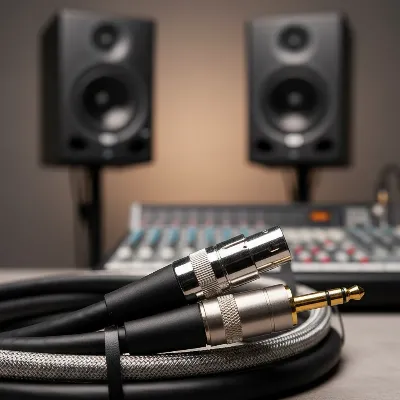 Balanced XLR and TRS audio cables for studio monitors reducing interference
2. Optimize Power & Grounding
Ground loops and inconsistent power delivery are frequent sources of frustrating popping noises. A ground loop occurs when there are multiple ground paths for your electrical equipment, creating a small current that manifests as hum, buzz, or pop in your speakers.
To address this, first, try to connect all your audio equipment to the same power outlet or a single, high-quality power strip. This helps ensure a consistent ground reference for all your devices, often eliminating ground loops. If this doesn’t work, experiment with different power outlets. Sometimes, plugging your computer and monitors into separate circuits can help, or vice-versa. For active speakers, plug them directly into the wall if possible, or into the same outlet as your interface. If ground loop issues persist, you might consider a ground loop isolator for your signal cables or a power conditioner. Be aware that some cheap ground loop isolators can negatively affect sound quality, so research reputable brands.
3. Practice Proper Power Sequencing
A simple yet often overlooked fix for pops during startup or shutdown is to follow a correct power sequencing routine. The “last on, first off” rule is crucial here. When powering up your studio, turn on your audio interface first, then your studio monitors. This allows the interface to stabilize its signal before sending it to the monitors. When powering down, reverse the order: turn off your studio monitors first, then your audio interface. This prevents the electrical surge caused by capacitors discharging in the monitors from being amplified and creating a loud pop when the interface is still active. While a small pop on turning off can be normal and harmless for well-designed monitors, following this sequence minimizes unnecessary noise and potential stress on your equipment.
4. Eliminate Electromagnetic Interference (EMI)
Your studio environment is often teeming with devices that emit electromagnetic interference (EMI) or radio frequency interference (RFI), which can be picked up by your audio cables and cause pops and crackles. Common culprits include cell phones, Wi-Fi routers, fluorescent lights, dimmer switches, refrigerators, air conditioning units, and even the internal components of your computer or visual monitor.
The key is to identify and isolate these interference sources. Try to keep your signal cables as far away as possible from power cables and any electrical appliances. If a pop occurs when you plug in a USB device, try using a different USB port, a powered USB hub, or a USB isolator. Sometimes, simply moving your cell phone away from your monitor cables can make a significant difference. Using a power conditioner or surge protector can also help filter out some electrical noise from your mains power, providing cleaner power to your studio gear.
5. Check Software, Drivers, and Buffer Settings
If your popping sounds are random, pulsating, or accompanied by other digital artifacts, the problem might lie in your software configuration. Outdated or corrupted audio drivers, incorrect buffer size settings, or even conflicts within your Digital Audio Workstation (DAW) can manifest as audible glitches.
Start by ensuring all your audio interface drivers are up-to-date. Visit the manufacturer’s website and download the latest drivers for your operating system. Next, examine your DAW’s buffer size settings. A buffer that is too small can lead to processing overloads, causing pops and dropouts. Try increasing the buffer size (e.g., from 64 to 128 or 256 samples) to give your computer more time to process audio data, which can resolve digital popping. If problems persist, consider reinstalling your audio interface software or even your DAW, as a fresh installation can sometimes resolve underlying conflicts.
“Many producers mistakenly blame their monitors for noise, but often the root cause lies in easily fixable issues like poor cabling or improper grounding. A methodical approach to troubleshooting saves both time and money.” – Sarah Jenkins, Audio Engineering Specialist
When to Seek Professional Help
While these DIY fixes cover the vast majority of studio monitor popping issues, there are instances where professional assistance becomes necessary. If you’ve systematically tried all the troubleshooting steps outlined above and the popping persists, it might indicate a more serious hardware fault. This could involve a defective component within your studio monitors, a failing audio interface, or an electrical wiring problem in your building. In such cases, contact the manufacturer for warranty service or consult a qualified audio technician or electrician. Attempting complex internal repairs on your own without expertise can be dangerous and may void warranties.
Conclusion
Unwanted popping from your studio monitors can be a major hurdle in achieving professional-quality audio. However, with a systematic approach to troubleshooting, many of these issues can be resolved quickly and affordably. By diligently inspecting your cables and upgrading to balanced connections, optimizing your power and grounding setup, adhering to proper power sequencing, mitigating electromagnetic interference, and fine-tuning your software settings, you can significantly reduce or eliminate disruptive popping. Remember, a clean, silent monitoring environment is fundamental to making accurate mixing decisions and producing exceptional music.
Have you battled persistent monitor popping in your studio? What quick fix worked best for you?
Frequently Asked Questions
Is monitor popping dangerous for my speakers?
Occasional, quiet pops during power cycles are generally not dangerous for well-designed studio monitors, as they are a result of internal capacitors discharging. However, loud, frequent, or persistent popping can potentially stress your speakers over time, especially if it indicates a significant electrical surge or ongoing interference. It’s always best to address the issue to protect your equipment and your hearing.
What are balanced cables and why are they better for studio monitors?
Balanced cables, such as XLR or TRS (Tip-Ring-Sleeve), feature three conductors: two for the audio signal (with one phase-inverted) and one for ground. This design allows them to effectively cancel out electromagnetic interference and radio frequency interference (EMI/RFI) picked up along the cable run, resulting in a much cleaner, noise-free signal, especially over longer distances. Unbalanced cables only have two conductors (signal and ground) and offer no such noise rejection.
Can a power strip fix popping sounds?
Yes, using a high-quality power strip can help resolve popping sounds by ensuring all your audio equipment shares a common ground point. Plugging all devices (monitors, audio interface, computer) into the same power strip can often eliminate ground loops, which are a common cause of electrical noise. Some power strips also offer surge protection and basic line conditioning, which can further stabilize your power supply.
