Properly connecting studio monitors to an audio interface is fundamental for accurate sound reproduction in music production. This process involves selecting appropriate balanced cables like XLR or TRS, ensuring correct output/input matching between devices, and optimizing monitor placement for an equilateral triangle listening position. High-quality studio monitors, such as the Yamaha HS5, require an audio interface to convert digital audio from a computer into analog signals, providing superior fidelity and lower latency compared to a computer’s built-in sound card.
Understanding Studio Monitors and Audio Interfaces
To properly connect your equipment, it’s crucial to understand the role of each component. Studio monitors are specialized loudspeakers designed to reproduce audio with a flat frequency response, meaning they don’t color the sound. Unlike consumer speakers that often boost bass or treble for a more “pleasant” listening experience, monitors aim for accuracy, revealing every detail in your mix so you can make informed decisions during production. This neutrality is paramount for mixing, mastering, and critical listening, as it allows you to hear your audio exactly as it is, rather than how a hyped speaker might present it.
An audio interface acts as the bridge between your computer and your professional audio gear, including microphones, instruments, and, crucially, your studio monitors. It converts analog signals from your instruments into digital data your computer can process, and then converts digital audio from your computer back into analog signals for your monitors to play. Beyond conversion, interfaces provide high-quality preamps for microphones, dedicated headphone outputs, and multiple inputs and outputs for connecting various studio equipment. Using an audio interface is superior to a computer’s built-in sound card because it offers higher fidelity, lower latency, and professional-grade connectors, which are vital for maintaining signal integrity and reducing unwanted noise. For see our studio monitor recommendations on this site.
Essential Cables and Connection Types
The cables you choose are as important as the devices themselves, especially when it comes to signal quality and noise rejection. Understanding the different types and their applications is key to a clean setup.
Balanced vs. Unbalanced Cables
The primary distinction in audio cables lies in whether they are balanced or unbalanced, which significantly impacts how they handle noise. Unbalanced cables use two conductors: a signal wire and a ground wire. While sufficient for short runs, they are susceptible to electromagnetic interference, picking up hums and buzzes, especially over longer distances. Common unbalanced connectors include TS (Tip-Sleeve) jacks and RCA connectors.
Balanced cables, on the other hand, employ three conductors: two signal wires (one carrying the original signal, the other carrying an inverted copy) and a separate ground wire. Any noise picked up by the cable affects both signal wires equally. When the inverted signal is flipped back to its original phase at the receiving end, the common noise cancels itself out, leaving a clean signal. This noise rejection capability makes balanced cables the professional standard for studio monitors and other critical audio connections, ensuring pristine audio quality even with longer cable runs. XLR and TRS (Tip-Ring-Sleeve) connectors are the typical balanced cable types.
Common Cable Connectors
|
Our Picks for the Best Studio Monitor in 2026
As an Amazon Associate I earn from qualifying purchases.
|
||
| Num | Product | Action |
|---|---|---|
| 1 | PreSonus Eris E4.5-2-Way 4.5" Near Field Studio Monitor (Pair) |

|
| 2 | Edifier MR4 Powered Studio Monitor Speakers, 4" Active Near-Field Monitor Speaker - White (Pair) |
|
| 3 | PreSonus Eris 3.5 Studio Monitors, Pair — Powered, Active Monitor Speakers for Near Field Music Production, Desktop Computer, Hi-Fi Audio |
|
| 4 | (2) JBL 305P MkII 5" 2-Way Active Powered Studio Reference Monitors Speakers |
|
| 5 | PreSonus Eris 3.5 Studio Monitors (White), Pair — 3.5" Inch Powered Bookshelf Speakers, Stereo, Desktop Computer, Near Field Music Production, Audio Mixing Recording |
|
| 6 | Mackie CR3.5 3.5" Creative Reference Powered Studio Monitors with Tone Knob and Location Switch — Active Speakers for Music Production, Desktop Computer, Gaming, HiFi Listening |
|
| 7 | Yamaha HS3 Powered Studio Monitor in Black, Pair (HS3 B) |
|
| 8 | Edifier R1280T Powered Bookshelf Speakers - 2.0 Active Near Field Studio Monitor Speaker - Wooden Enclosure - 42 Watts RMS Power |
|
| 9 | PreSonus Eris E5 2-Way 5.25" Near Field Studio Monitor |
|
| 10 | Yamaha HS4 Powered Studio Monitor in White, Pair (HS4 W) |
|
-
XLR (External Line Return): A three-pin connector commonly used for balanced microphone and line-level signals. XLR cables provide a secure, locking connection, making them extremely reliable in professional environments. Many studio monitors feature XLR inputs.
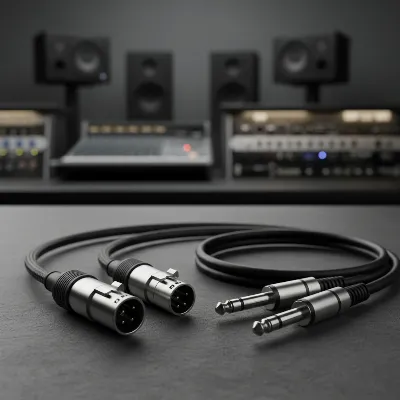 Balanced XLR and TRS cables for audio interface to studio monitor connection
 -
TRS (Tip-Ring-Sleeve): A 1/4-inch (6.35mm) jack with three contact points, allowing it to carry a balanced mono signal or an unbalanced stereo signal. For studio monitor connections, a TRS cable is used to transmit a balanced mono signal from your audio interface to each monitor. They are often seen as outputs on audio interfaces and inputs on studio monitors.
-
TS (Tip-Sleeve): A 1/4-inch (6.35mm) jack with two contact points, carrying an unbalanced mono signal. These are primarily used for instruments like guitars or for connecting to consumer-grade equipment. While some entry-level monitors might have TS inputs, it’s generally recommended to use balanced connections for monitors when available.
-
RCA: A common connector found in consumer audio equipment, typically carrying unbalanced stereo signals (red for right, white/black for left). Some budget studio monitors or multimedia speakers may offer RCA inputs, but they are less common in professional studio setups due to their unbalanced nature and susceptibility to noise.
-
3.5mm (1/8″) to Dual 1/4″ or RCA: These adapter cables are sometimes used to connect monitors directly to a computer’s headphone jack. However, this method is highly discouraged for studio use due to its unbalanced signal, low quality, and potential for ground loop hum. An audio interface should always be the preferred route.
Types of Studio Monitors and Their Connection Needs
The type of studio monitor you have will dictate certain aspects of your connection strategy, primarily concerning power and amplification.
Active (Powered) Studio Monitors
Most modern studio monitors are active, meaning they have a built-in amplifier for each speaker (and often for each driver within a speaker, known as bi-amping or tri-amping). This integrated design simplifies your setup significantly as you don’t need an external power amplifier. Active monitors require a power cable (usually an IEC cable, like those for computers) to be plugged into a wall outlet or power conditioner, and then a signal cable (typically balanced XLR or TRS) from your audio interface directly to the monitor’s input. This is the most common and recommended setup for home and project studios due to its simplicity and optimized internal amplification.
Passive Studio Monitors
Passive studio monitors, on the other hand, do not have built-in amplifiers. They require an external power amplifier to drive them. In this setup, your audio interface’s line outputs connect to the inputs of a stereo power amplifier. The amplifier then connects to the passive monitors using traditional speaker wire (often bare wire, banana plugs, or SpeakON connectors). While less common in modern personal studios due to the added complexity and cost of a separate amplifier, passive monitors can offer excellent sound quality and flexibility, especially in larger, custom-built studio environments. When choosing an amplifier for passive monitors, it’s crucial to match its power output (wattage) and impedance to your monitors’ specifications for optimal performance and to prevent damage.
Step-by-Step Guide: Connecting Your Studio Monitors
Connecting your studio monitors to an audio interface is a straightforward process once you understand the necessary components and steps. Follow this guide to ensure a smooth and optimal setup.
Step 1: Connect Your Audio Interface to Your Computer
Begin by connecting your audio interface to your computer. Most modern interfaces use a USB (Type-A, Type-B, or USB-C) or Thunderbolt cable. Plug one end into the appropriate port on your interface and the other into your computer. Once connected, install any necessary drivers and software provided by your audio interface manufacturer. This step is crucial for your computer to recognize the interface and for your Digital Audio Workstation (DAW) to communicate with it effectively. Ensure your DAW’s audio preferences are set to use your audio interface as the primary input and output device.
Step 2: Prepare for Connection
Before making any physical audio connections, always ensure both your studio monitors and your audio interface are powered off. Turn down the volume knobs on both the interface’s main output and the individual volume controls on your monitors to their lowest settings. This precaution prevents sudden loud noises or power surges that could damage your speakers or hearing.
Step 3: Identify Outputs on Your Audio Interface
Locate the main outputs on the back of your audio interface. These are typically labeled “Main Out,” “Monitor Out,” “Line Out,” or simply “Outputs L/R” (for left and right). The most common connector types you’ll find here are 1/4-inch TRS or XLR outputs. It’s important to identify whether they are balanced outputs, which is standard for most professional interfaces.
Step 4: Identify Inputs on Your Studio Monitors
Next, examine the input connections on the back of each of your studio monitors. You’ll commonly find XLR, 1/4-inch TRS, or sometimes RCA inputs. Note which types of inputs each monitor has. Ideally, both your interface and monitors will support balanced connections (XLR or TRS) for the best sound quality. If your monitors have both XLR and TRS inputs, either can be used; XLR often offers a more secure, locking connection.
Step 5: Choose the Right Cables
Based on the outputs of your audio interface and the inputs of your studio monitors, select the appropriate balanced cables.
- If your interface has TRS outputs and your monitors have TRS inputs, use TRS to TRS cables.
- If your interface has TRS outputs and your monitors have XLR inputs, use TRS to male XLR cables.
- If your interface has XLR outputs and your monitors have XLR inputs, use XLR to XLR cables.
- If your interface has XLR outputs and your monitors have TRS inputs, use XLR to TRS cables.
Always opt for balanced cables (TRS or XLR) to minimize noise and interference. Avoid using unbalanced cables (like TS or RCA) for your primary monitor connections if balanced options are available. Purchase two identical cables of appropriate length, one for the left monitor and one for the right.
Step 6: Make the Physical Connections
With your cables in hand, proceed to connect:
- Connect one end of the first cable to the left main output of your audio interface.
- Connect the other end of that same cable to the left input on your left studio monitor.
- Repeat this process for the right main output of your audio interface and the right input on your right studio monitor using the second cable.
Ensure all connections are firm and secure. For active monitors, also ensure they are plugged into a reliable power source.
Step 7: Power On and Initial Setup
Now that everything is physically connected:
- Power on your studio monitors first.
- Then, power on your audio interface. This sequence helps prevent sudden pops or thumps.
- Confirm your computer’s sound settings (e.g., in Windows Sound Settings or macOS Sound Preferences) have your audio interface selected as the output device.
- Begin playing some audio (music, a project in your DAW).
- Gradually raise the main output volume on your audio interface.
- Once you hear sound, slowly adjust the volume knobs on your individual studio monitors, usually setting them to about halfway or to a manufacturer-recommended reference point. Then use the audio interface’s master volume for daily level adjustments.
Optimizing Your Studio Monitor Setup for Best Sound
Connecting your monitors is just the first step. Proper placement and room treatment are crucial for accurate monitoring.
Monitor Placement
Optimal monitor placement is vital for achieving an accurate stereo image and frequency response. Follow the “equilateral triangle” rule: position yourself and your two monitors to form an equilateral triangle. Your head should be at the apex, with each monitor at an equal distance from your ears and from each other. The tweeters (high-frequency drivers) of your monitors should ideally be at ear level. Avoid placing monitors directly against walls or in corners, as this can exaggerate bass frequencies and create an inaccurate sound. Aim for at least 6-12 inches (15-30 cm) of distance from walls, if possible, and ensure symmetry in your room layout around the listening position.
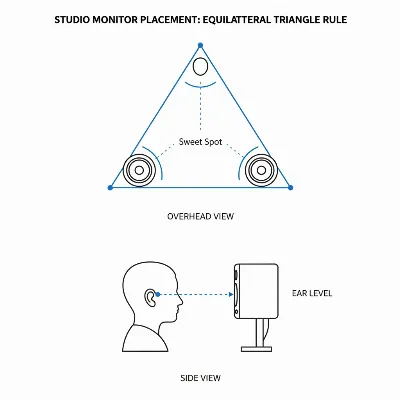 Optimal studio monitor placement showing equilateral triangle and ear level
Isolation
To prevent unwanted vibrations from transferring to your desk or monitor stands, use monitor isolation pads or dedicated monitor stands. These accessories decouple the monitors from surfaces, reducing resonance and allowing the speakers to reproduce sound more clearly and accurately. This small investment can make a noticeable difference in the clarity and tightness of your low-end frequencies.
Room Acoustics
The acoustic properties of your room significantly impact how you perceive sound from your monitors. Untreated rooms can suffer from excessive reflections, standing waves, and flutter echoes, leading to an inaccurate listening environment. While comprehensive acoustic treatment can be costly, even basic steps like placing acoustic foam panels at first reflection points, using bass traps in corners, and employing diffusers can dramatically improve the clarity and accuracy of your monitoring. Understanding your room’s sound helps you trust what you hear from your monitors.
Gain Staging and Calibration
Proper gain staging ensures that your audio signal flows through your system at optimal levels without introducing noise or distortion. After connecting your monitors, set the monitor volumes to a comfortable listening level and use your audio interface’s main output knob for primary volume control. For advanced optimization, consider using room calibration software (like Sonarworks SoundID Reference) or hardware to measure your room’s acoustic response and apply corrective EQ, aiming for the flattest possible frequency response at your listening position.
Common Pitfalls and Troubleshooting
Even with careful setup, issues can arise. Here are common problems and how to address them:
- Hum or Buzz (Ground Loops): This is often caused by unbalanced cables, faulty grounding, or connecting equipment to different power outlets. Ensure you are using balanced cables for monitors. Try plugging all your audio gear into a single, high-quality power conditioner.
- No Sound: Double-check all cable connections. Verify that the correct audio interface is selected as the output device in your computer’s sound settings and DAW. Ensure all volume knobs (on the interface, monitors, and computer) are turned up. Check if the monitor power lights are on.
- Phase Issues or Mismatched Stereo Image: This usually points to incorrect monitor placement or incorrect wiring. Re-verify the equilateral triangle setup and ensure left output goes to left monitor and right to right. Make sure your cables are in good condition and correctly wired (e.g., TRS to TRS, not TS).
Conclusion
Properly connecting your studio monitors to an audio interface is more than just plugging in cables; it’s about establishing a clean, reliable, and accurate signal chain that forms the backbone of your audio workspace. By understanding the different cable types, prioritizing balanced connections, and following a methodical setup process, you lay the foundation for critical listening and informed mixing decisions. that optimizing your listening environment through thoughtful placement and acoustic treatment further enhances the fidelity of your monitors. With these steps, you can confidently set up your studio, ensuring that every sound you hear is a true representation of your work.
What steps will you take to optimize your studio monitor setup today for the most accurate sound possible?

I’ve been using my computer’s built-in sound card for too long and finally decided to upgrade. The explanation of how an audio interface converts digital to analog signals and provides lower latency really convinced me. My new setup with an interface and monitors is a night and day difference for my production workflow.
While the steps for connecting were clear, I wish there was a bit more detail on troubleshooting common hum or buzz issues. I still get a slight hum sometimes, even with balanced TRS cables. It’s not terrible, but it’s there. Otherwise, good overview for beginners.
The advice on optimizing monitor placement for an equilateral triangle listening position was a game-changer for my small space. I thought I had them set up okay, but adjusting them made a noticeable improvement in the stereo imaging. My mixes feel much more balanced now. Definitely recommend paying attention to that detail.
I always struggled with getting a clean signal from my interface to my monitors. The tip about using balanced cables like XLR really made a difference. My Yamaha HS5s sound so much clearer now, and I’m finally hearing my mixes with the accuracy I needed. This guide was super helpful for a home studio setup.